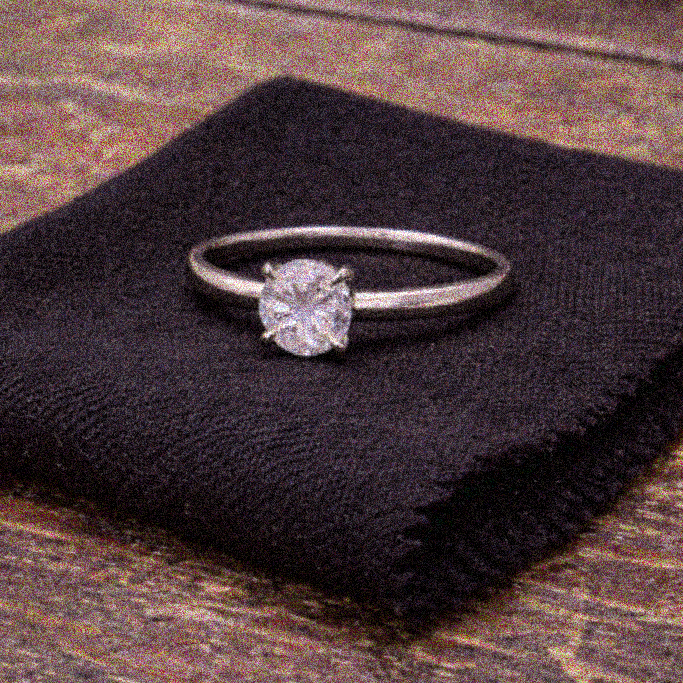
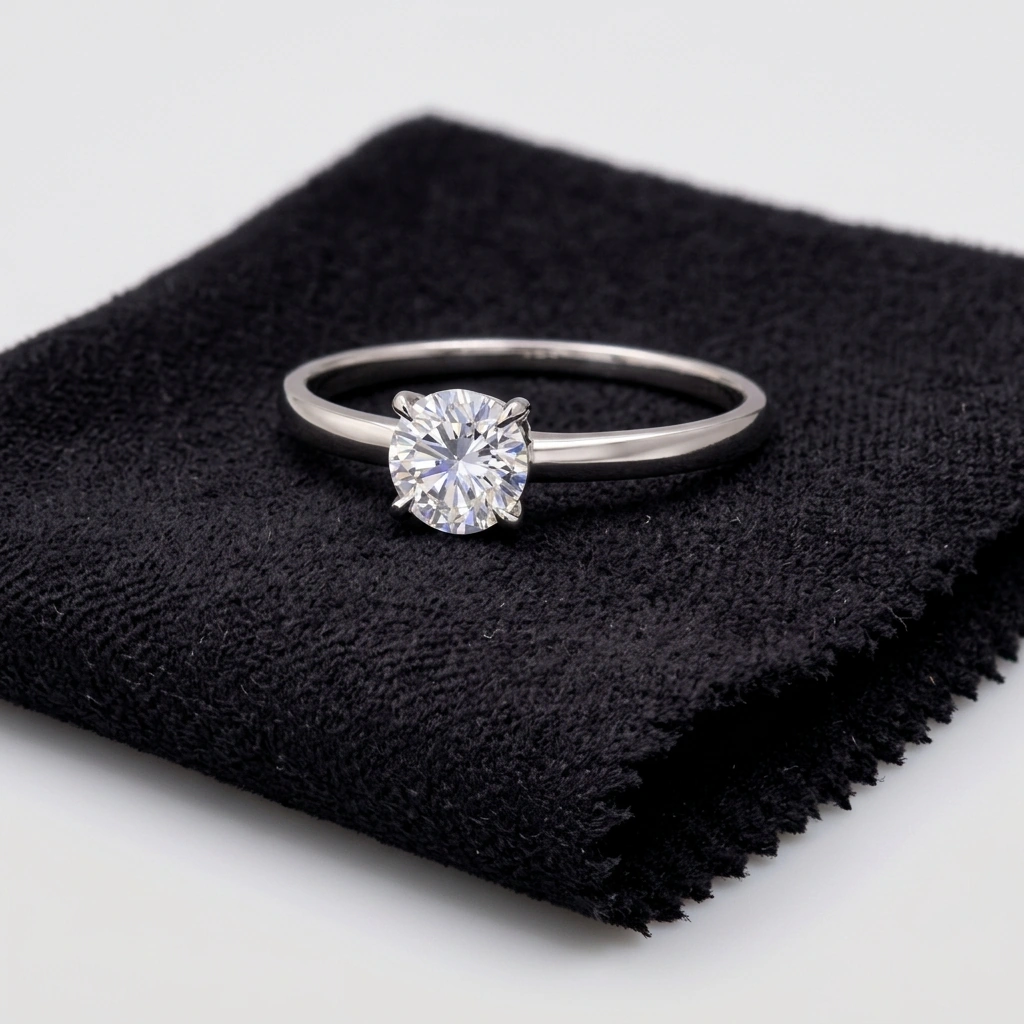
 BeforeAfter
Diamond solitaire ring
ring PDPs / catalog cleanup
Explore actual retouch and material swapping results from Poliro
Retouch & enhance
BeforeAfterring PDPs / catalog cleanup
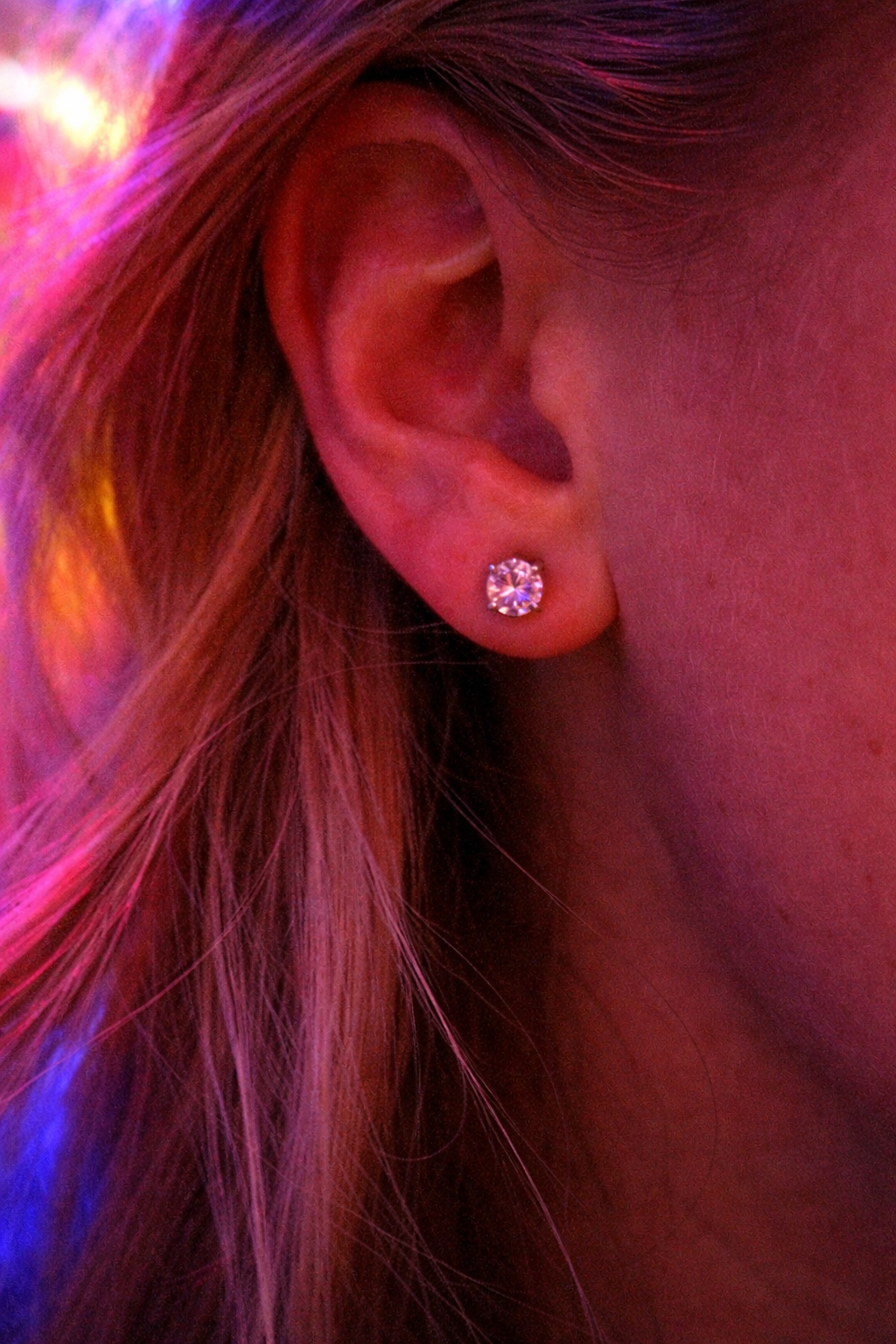
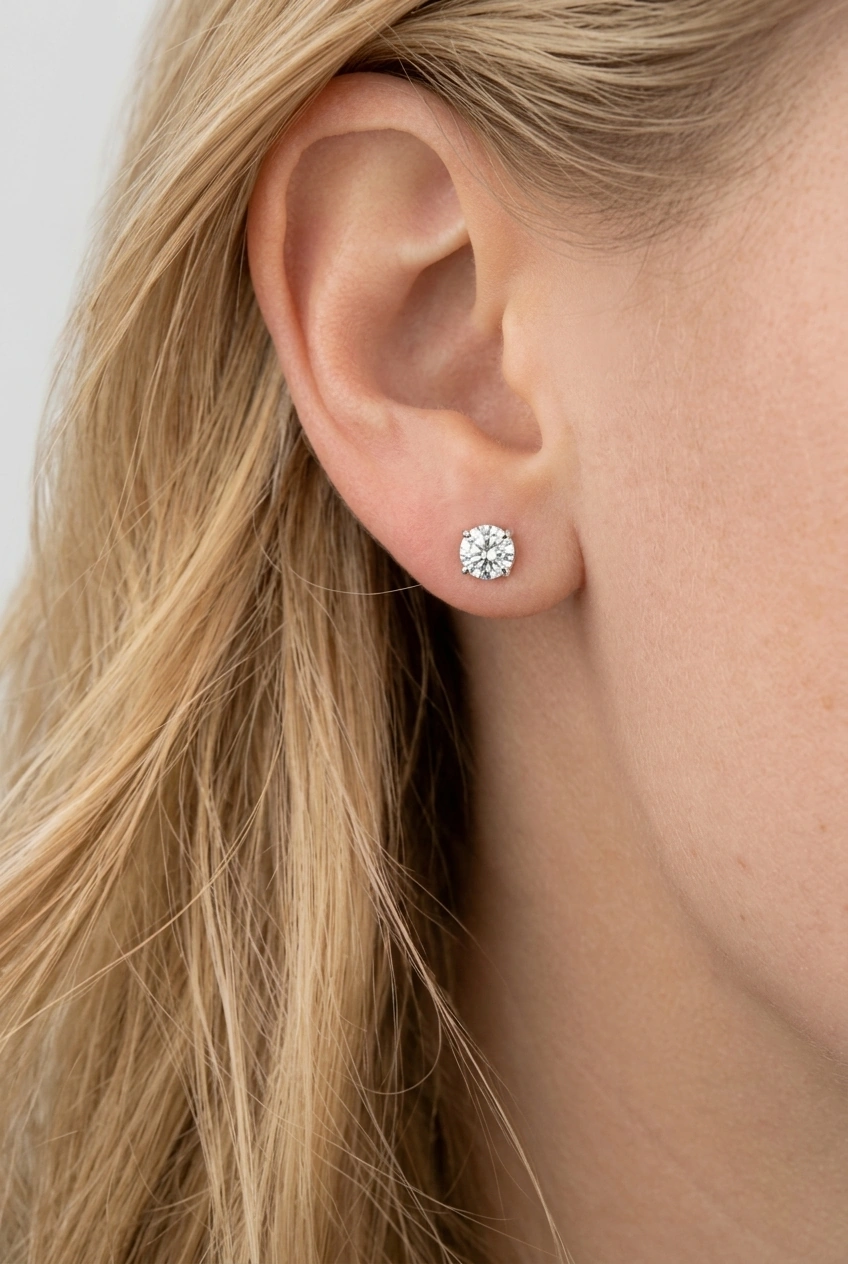 BeforeAfter
earring PDPs / lifestyle image cleanup
 BeforeAfter
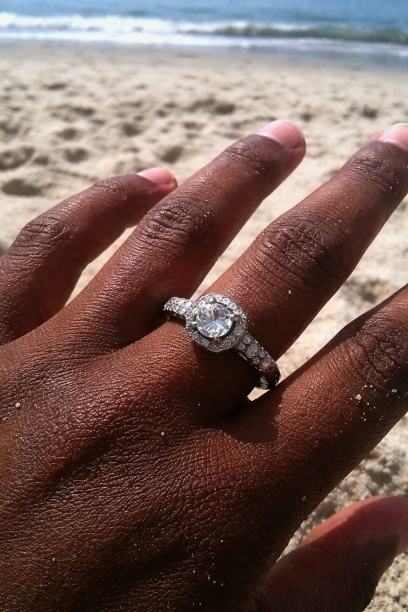
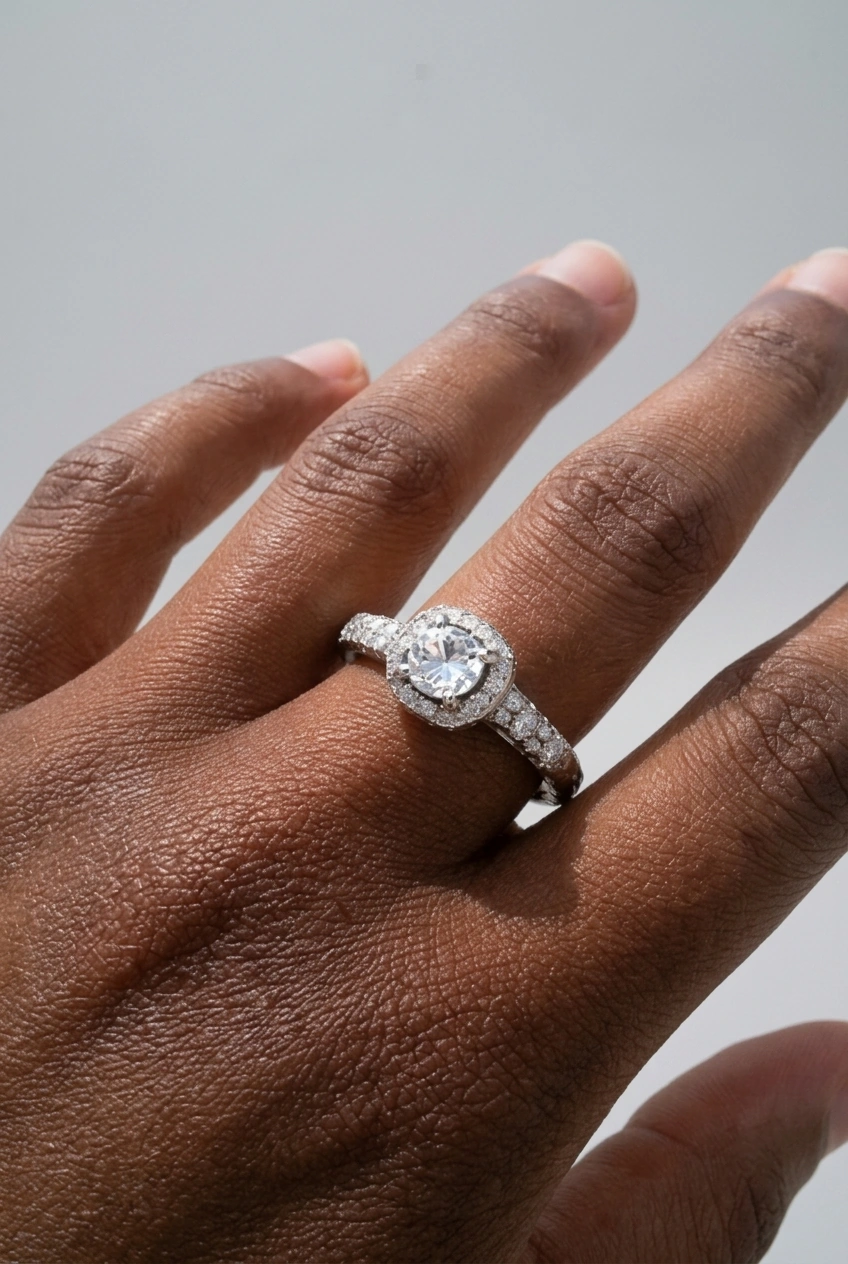
social-to-catalog cleanup / ring listings
 BeforeAfter
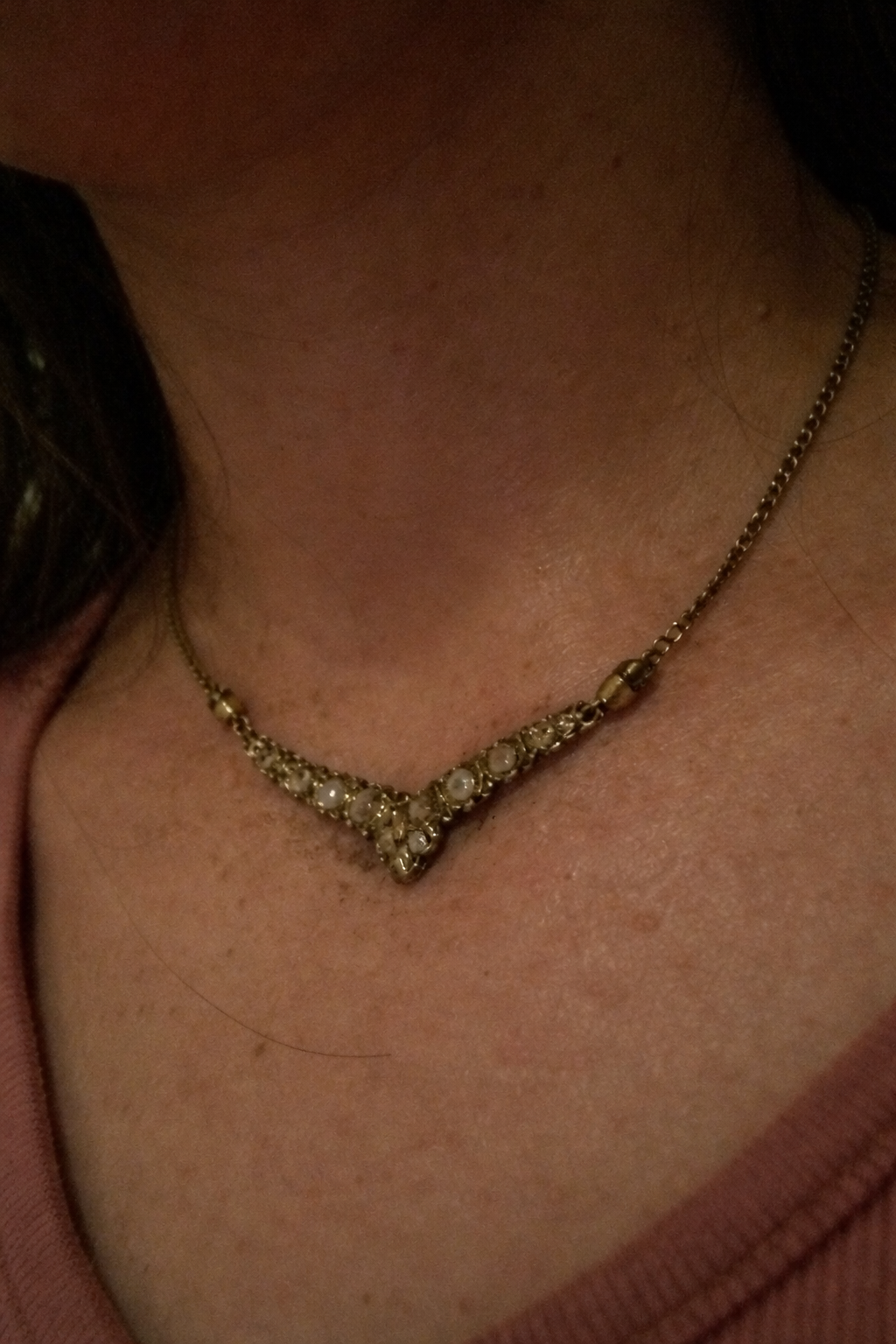
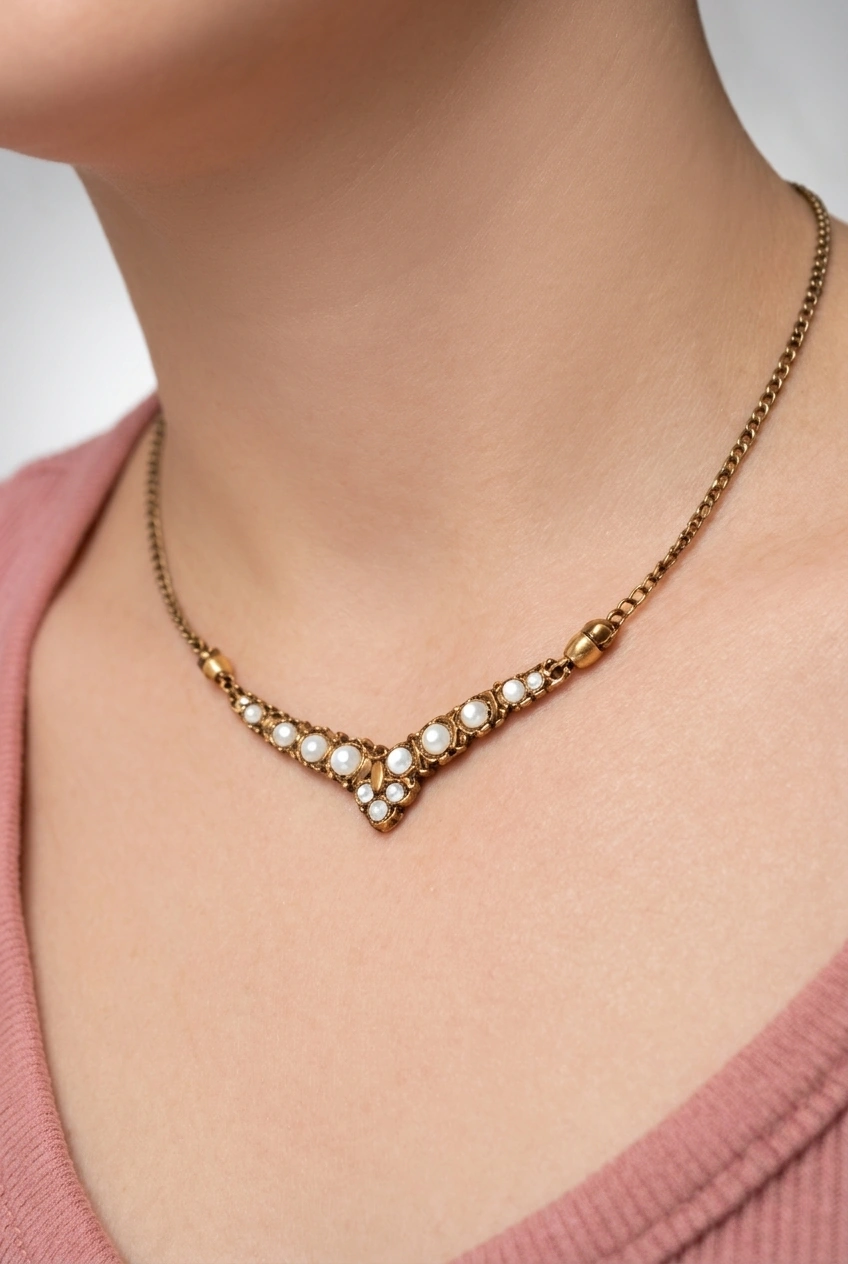
necklace PDPs / worn product imagery
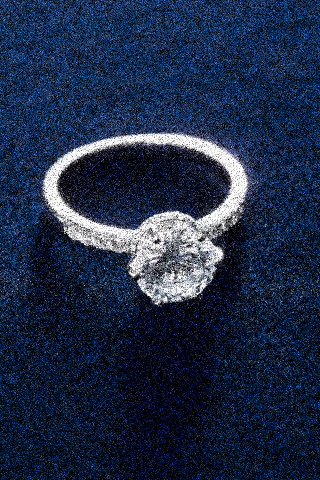
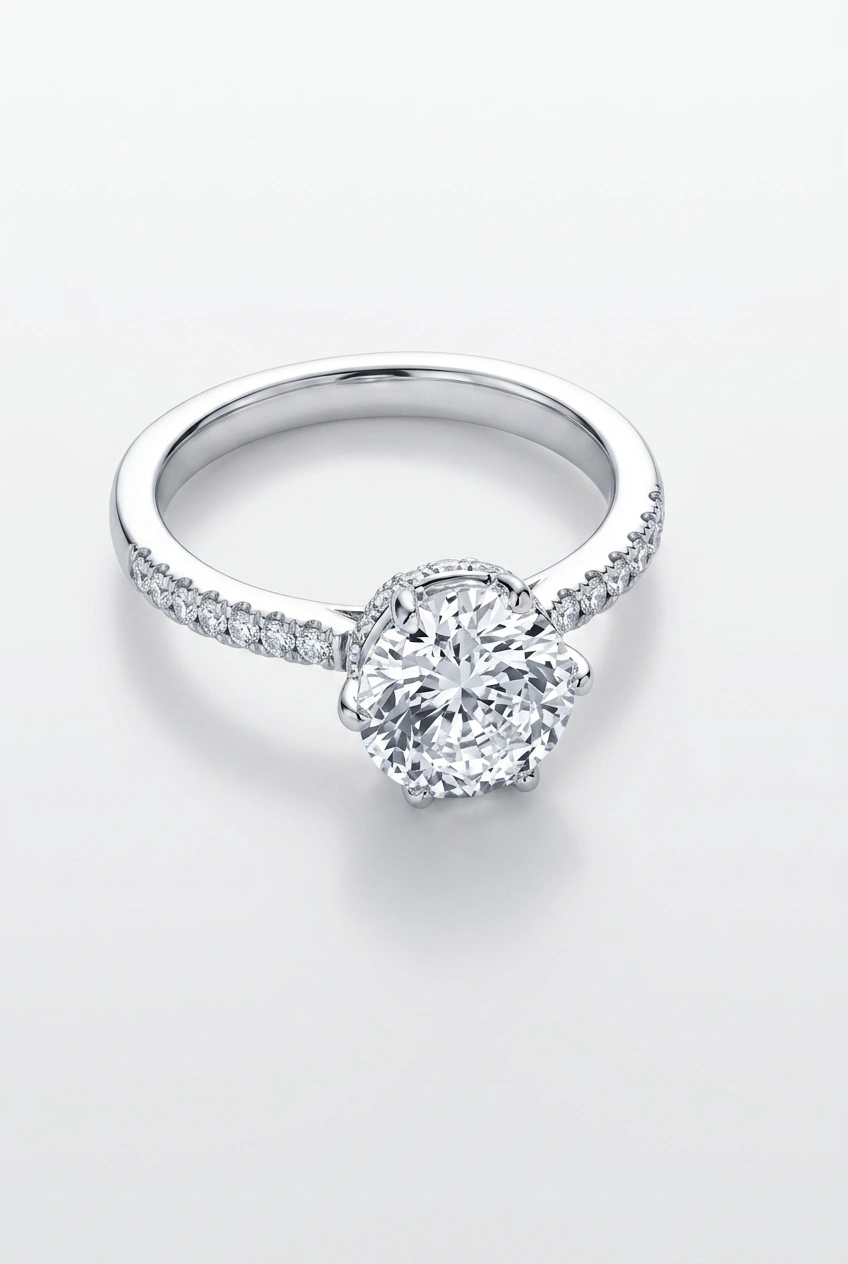 BeforeAfter
old photographs / complete restoration
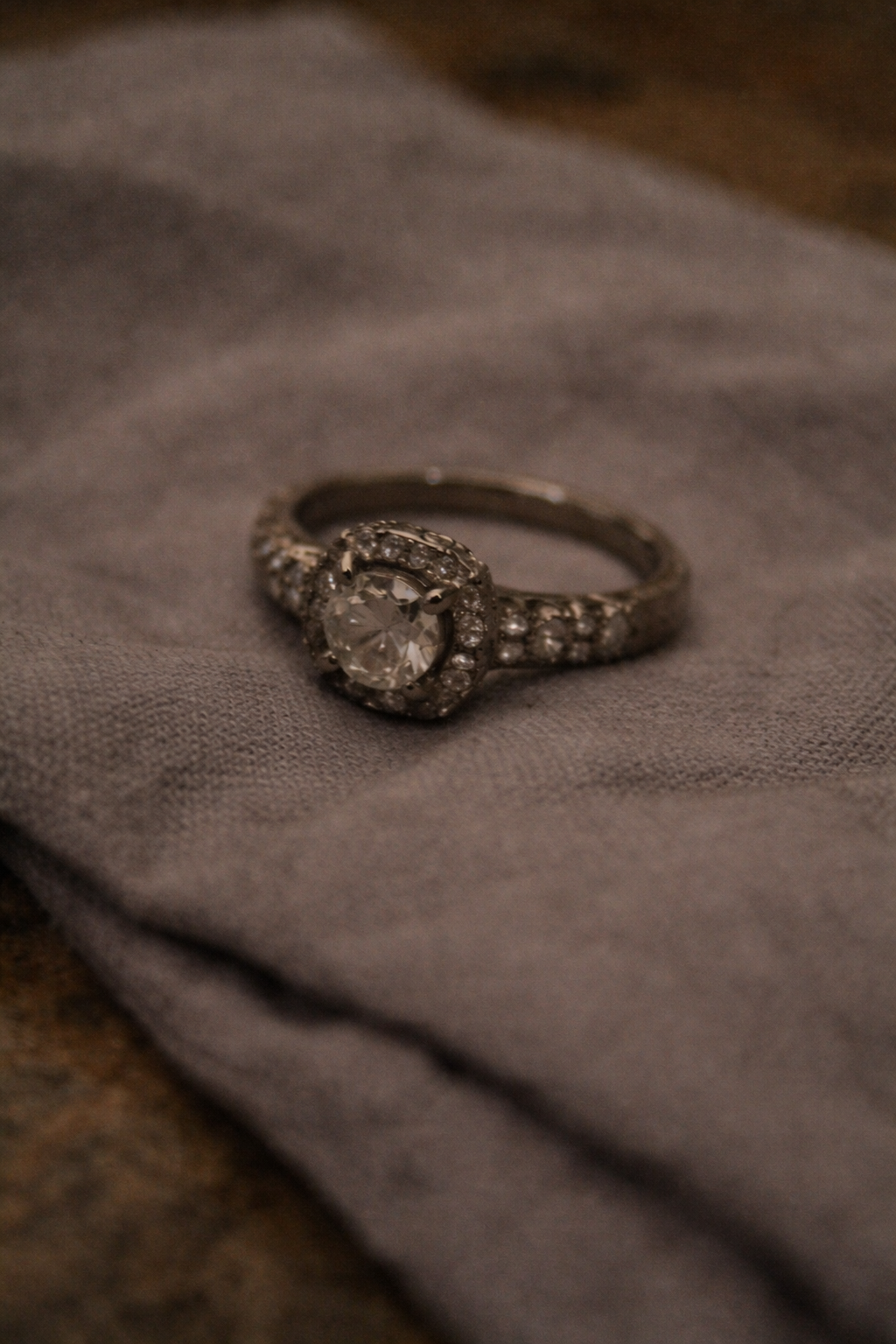
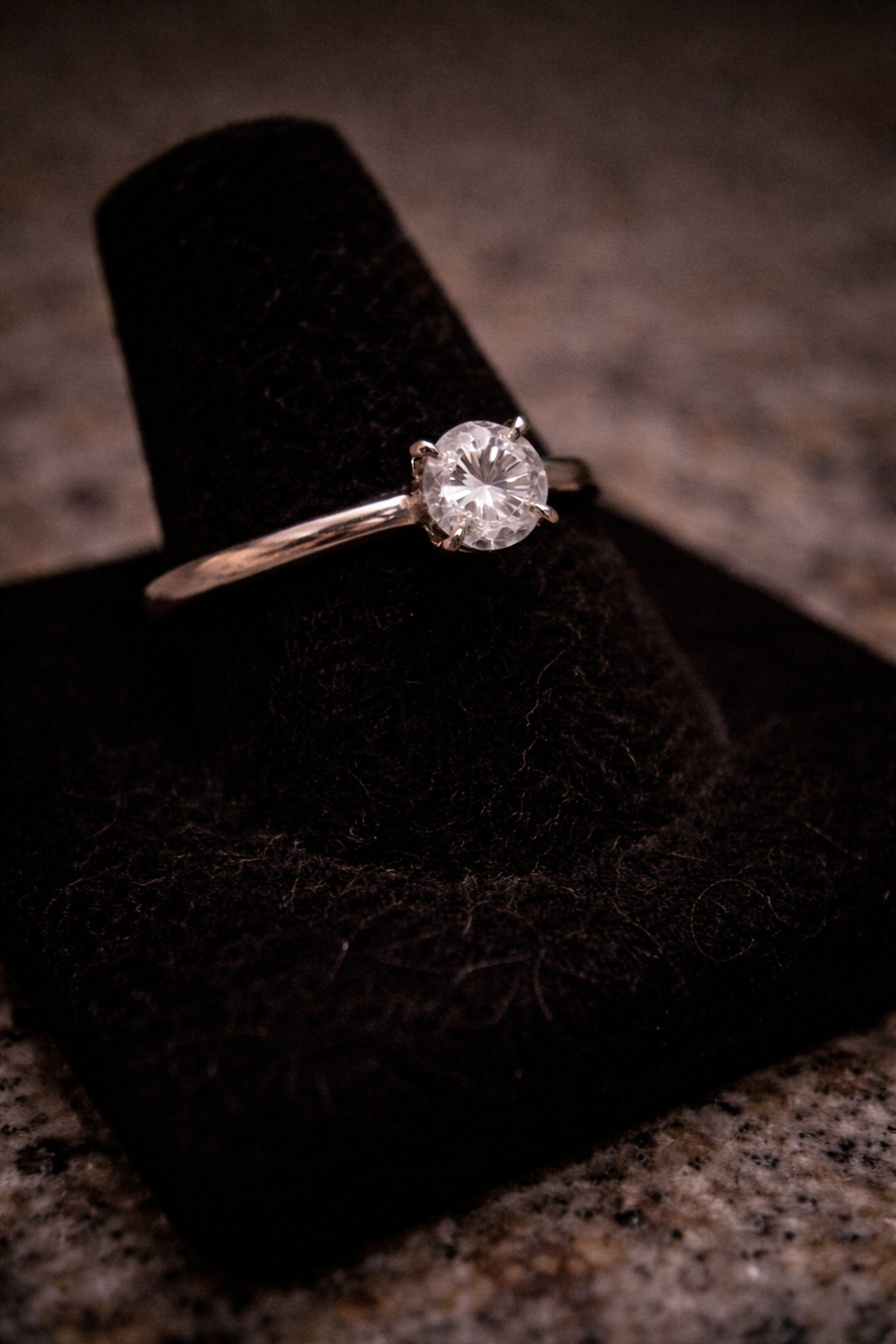
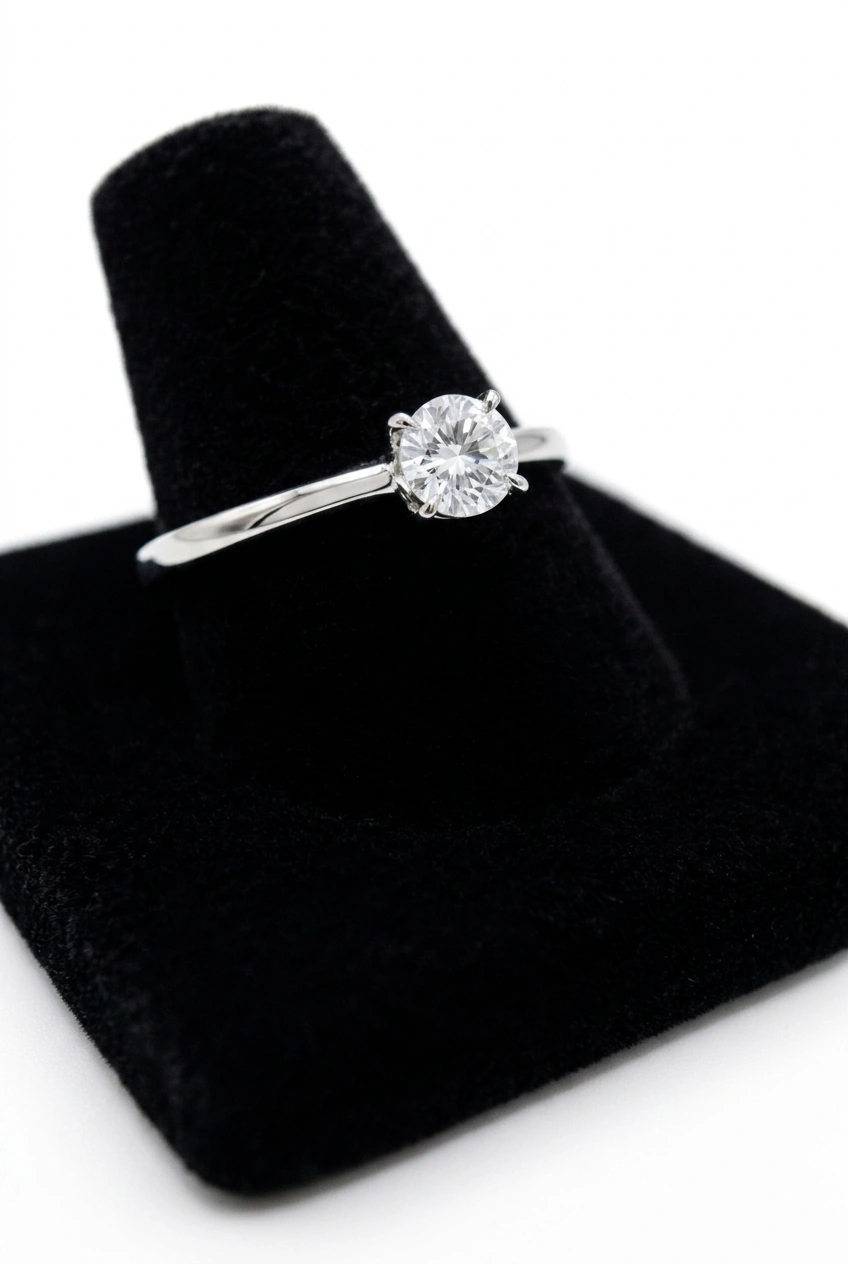
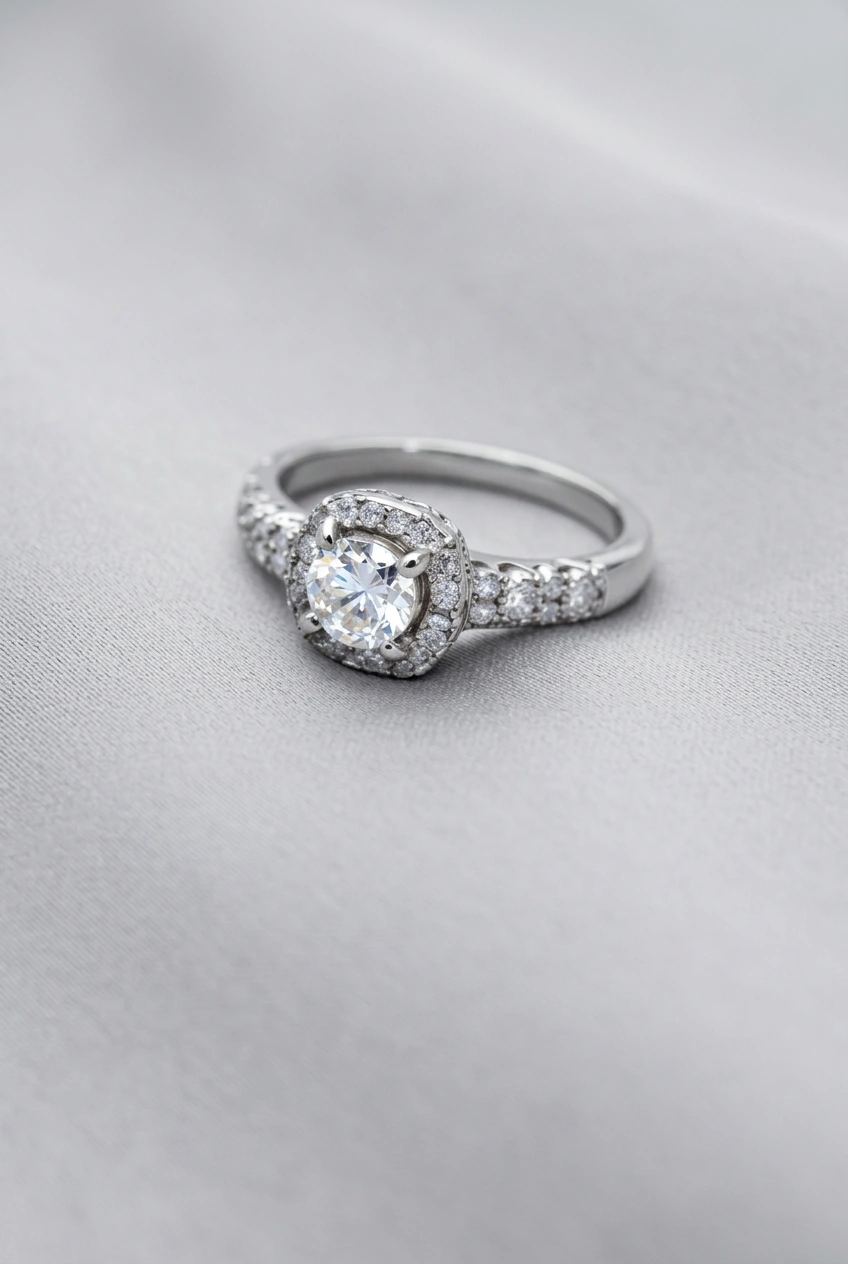 BeforeAfter
detail crops / ring catalog images
 BeforeAfter
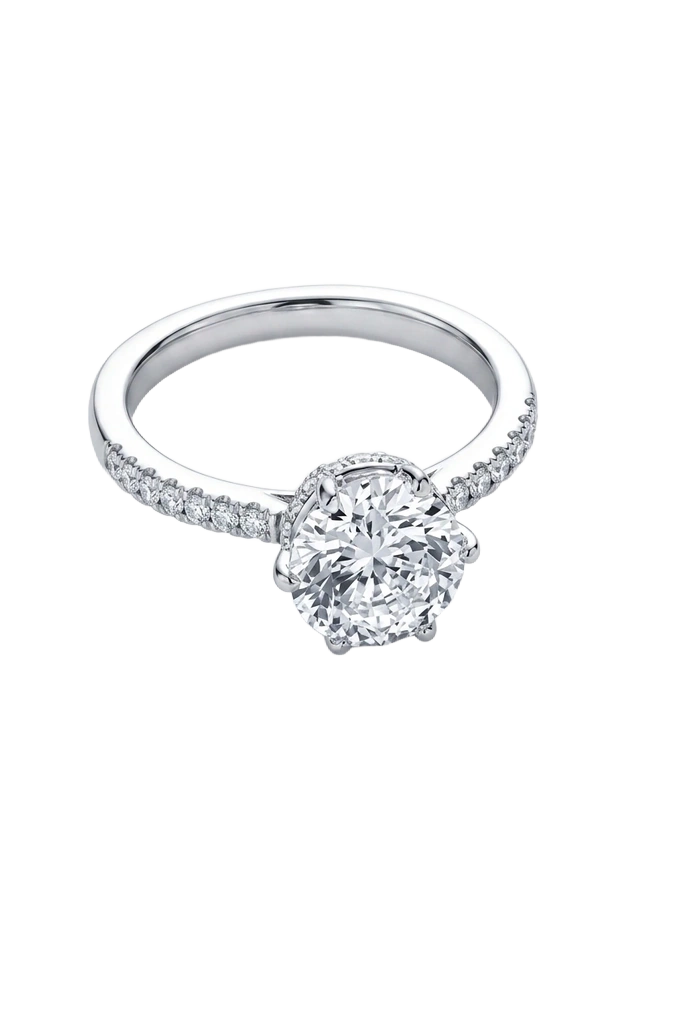
marketplace listings / white-background exports
 BeforeAfter
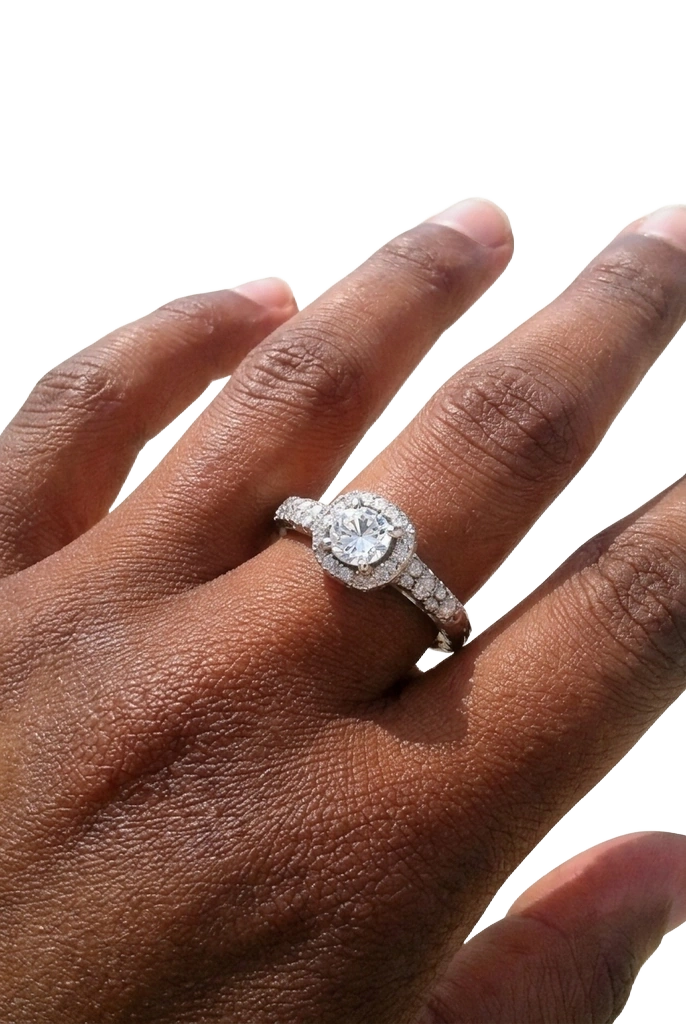
assets for websites, advertisements and printable catalogs
 BeforeAfter
assets for websites, advertisements and printable catalogs
Material variants
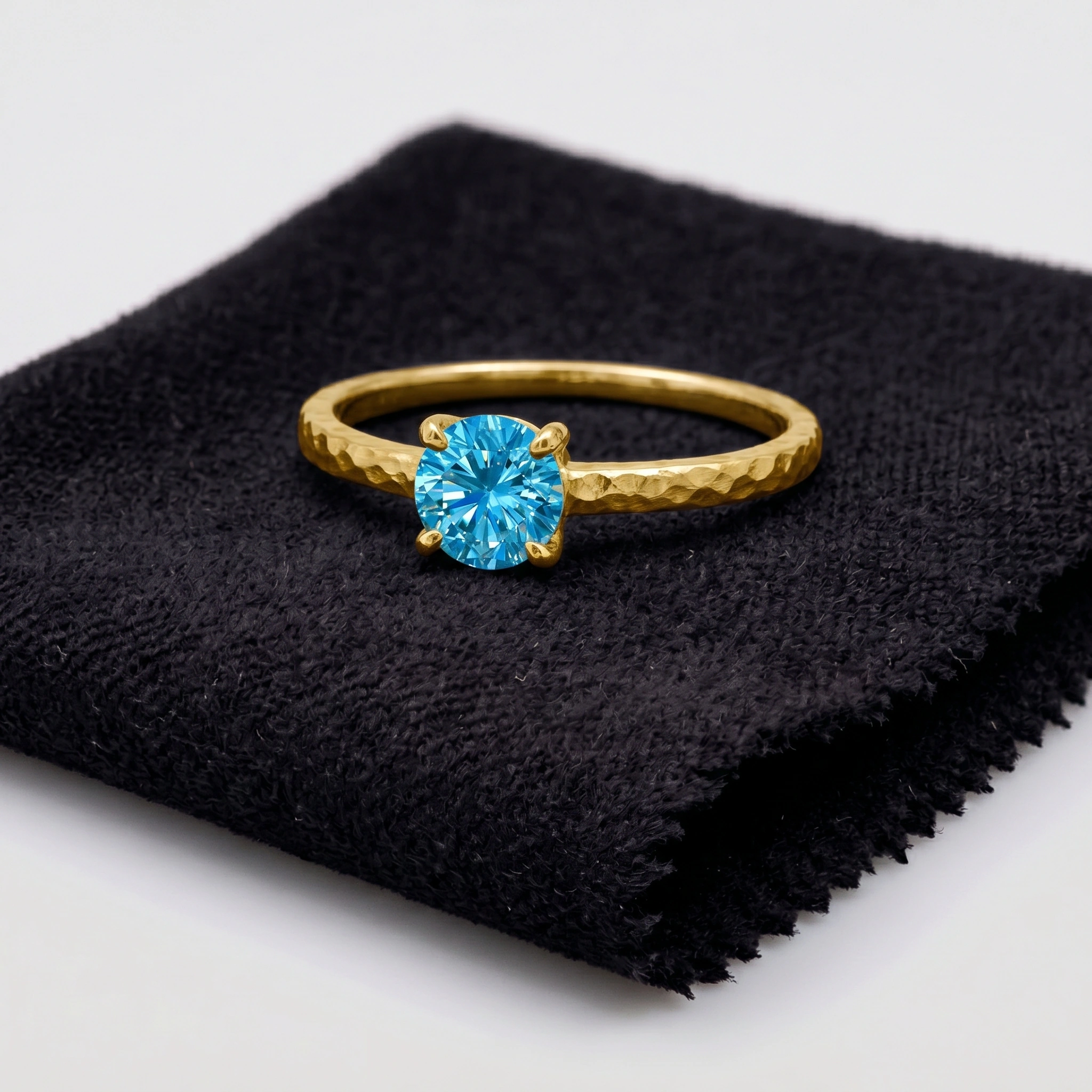
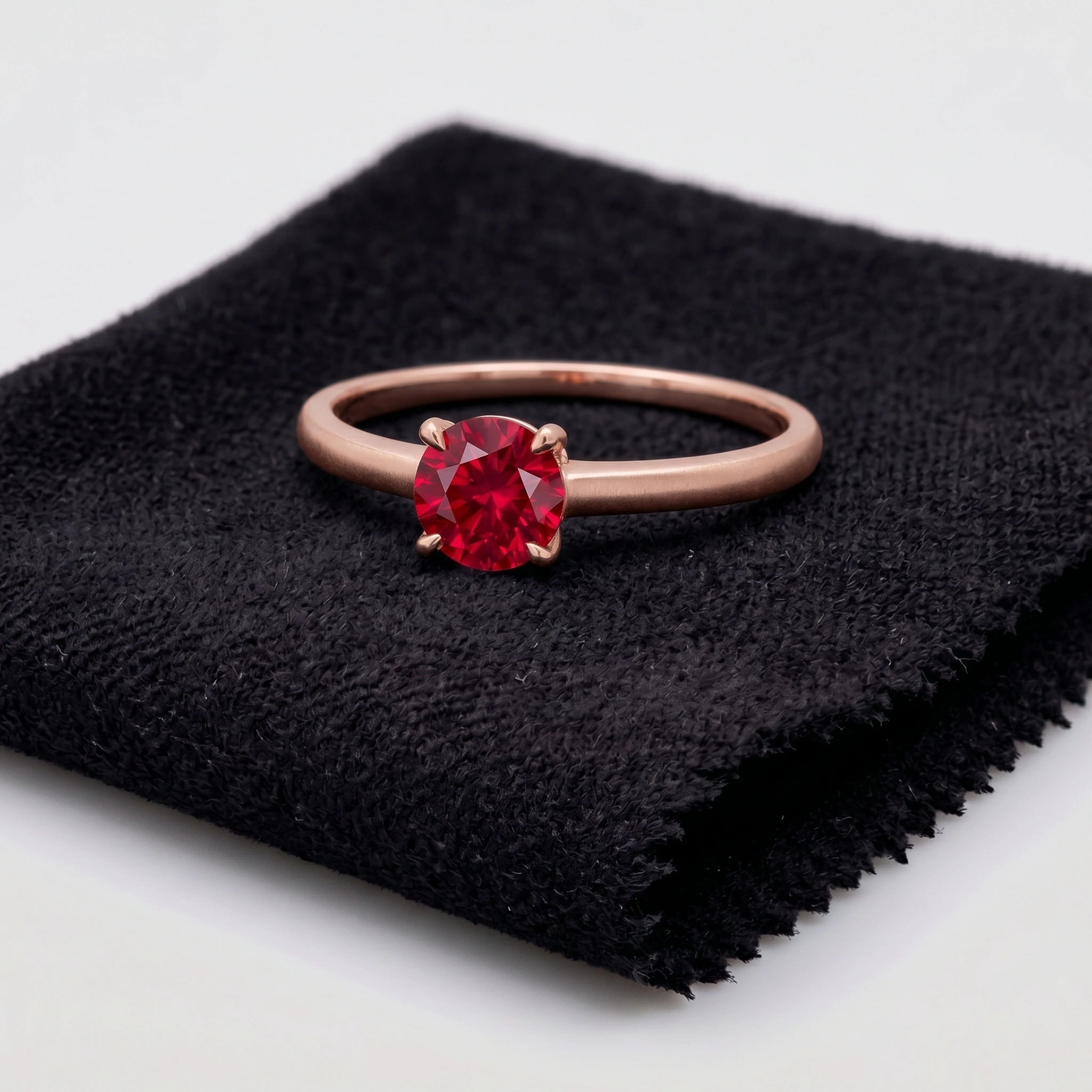
metal and gemstone PDP variants
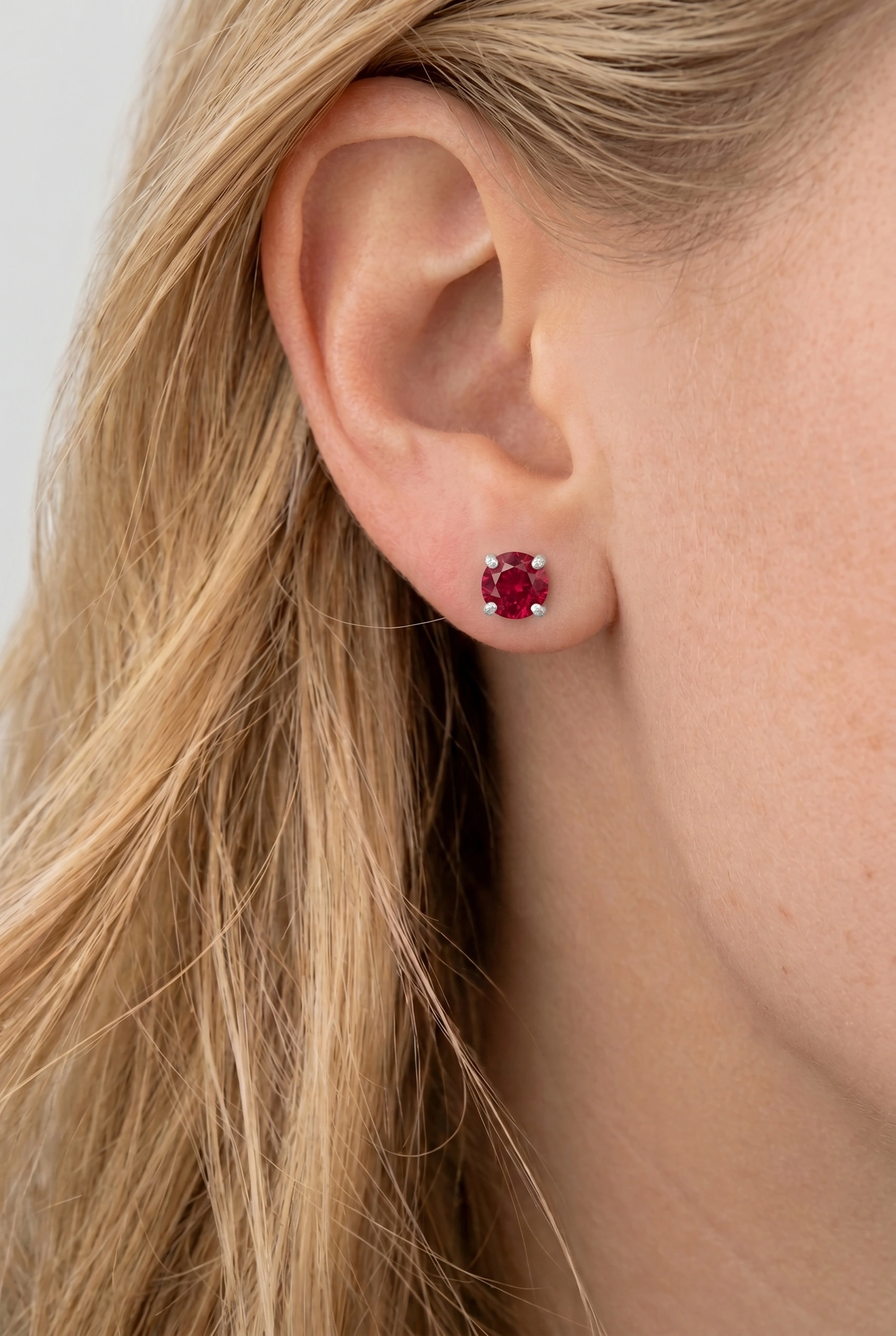
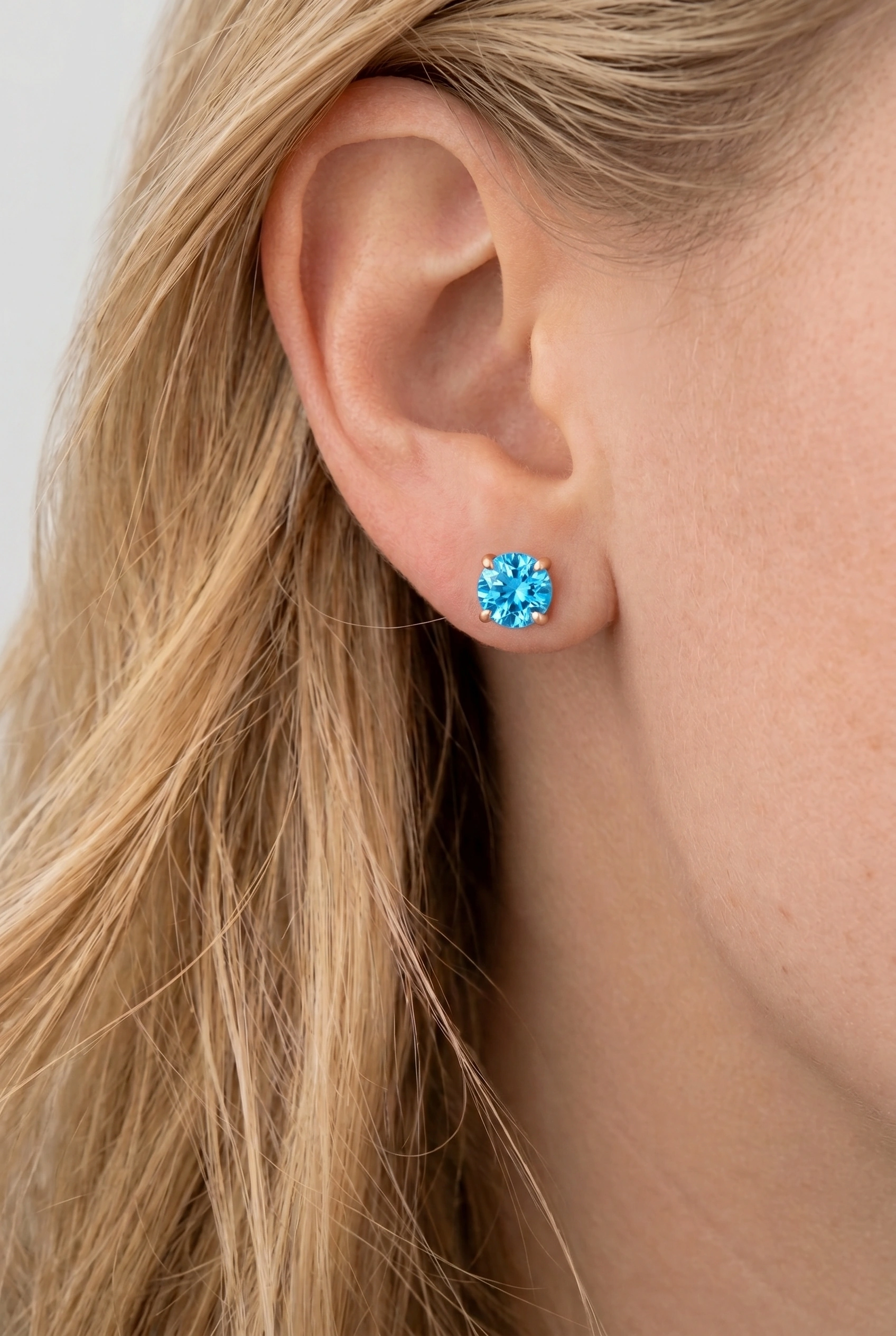
earring variant merchandising / collection planning
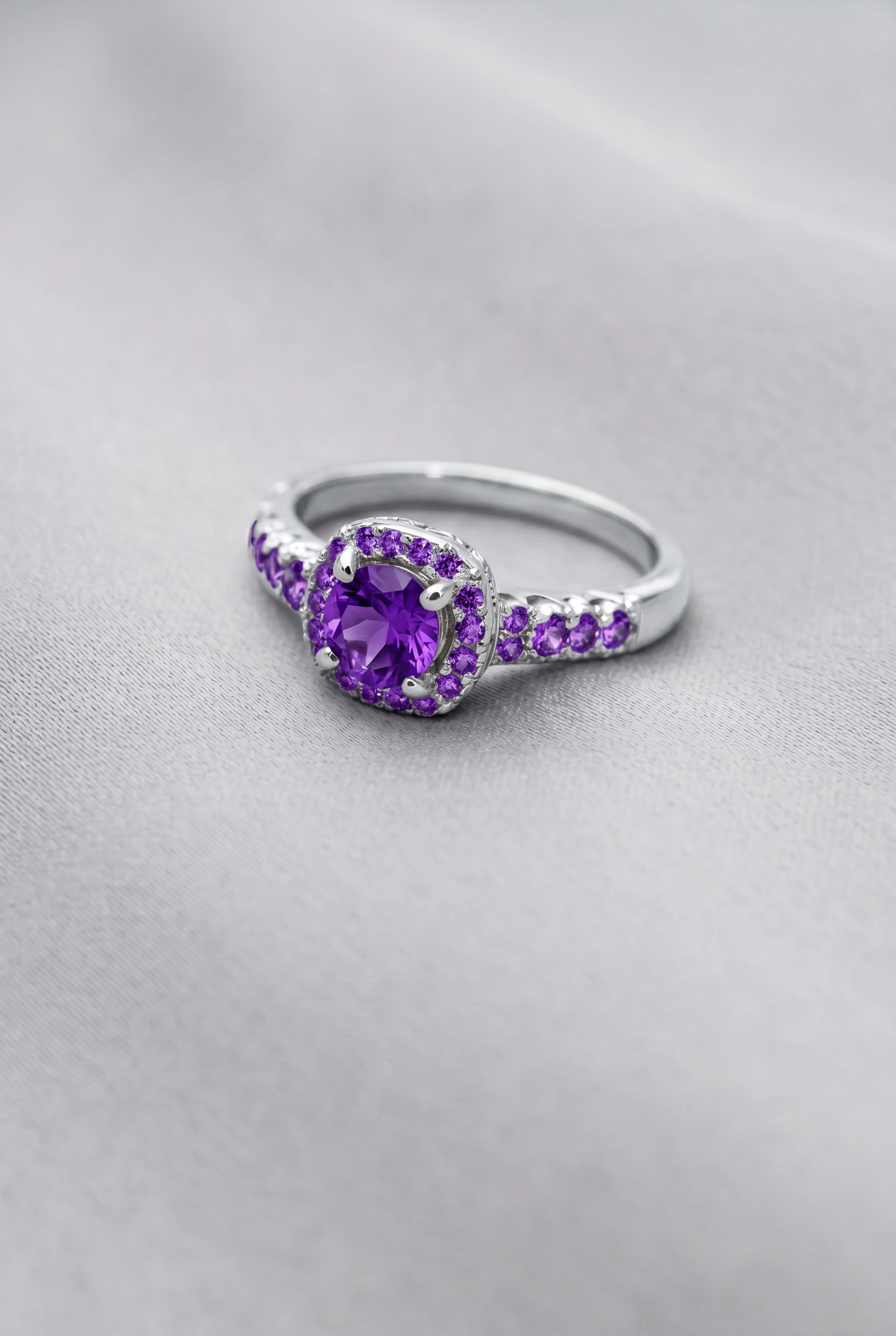
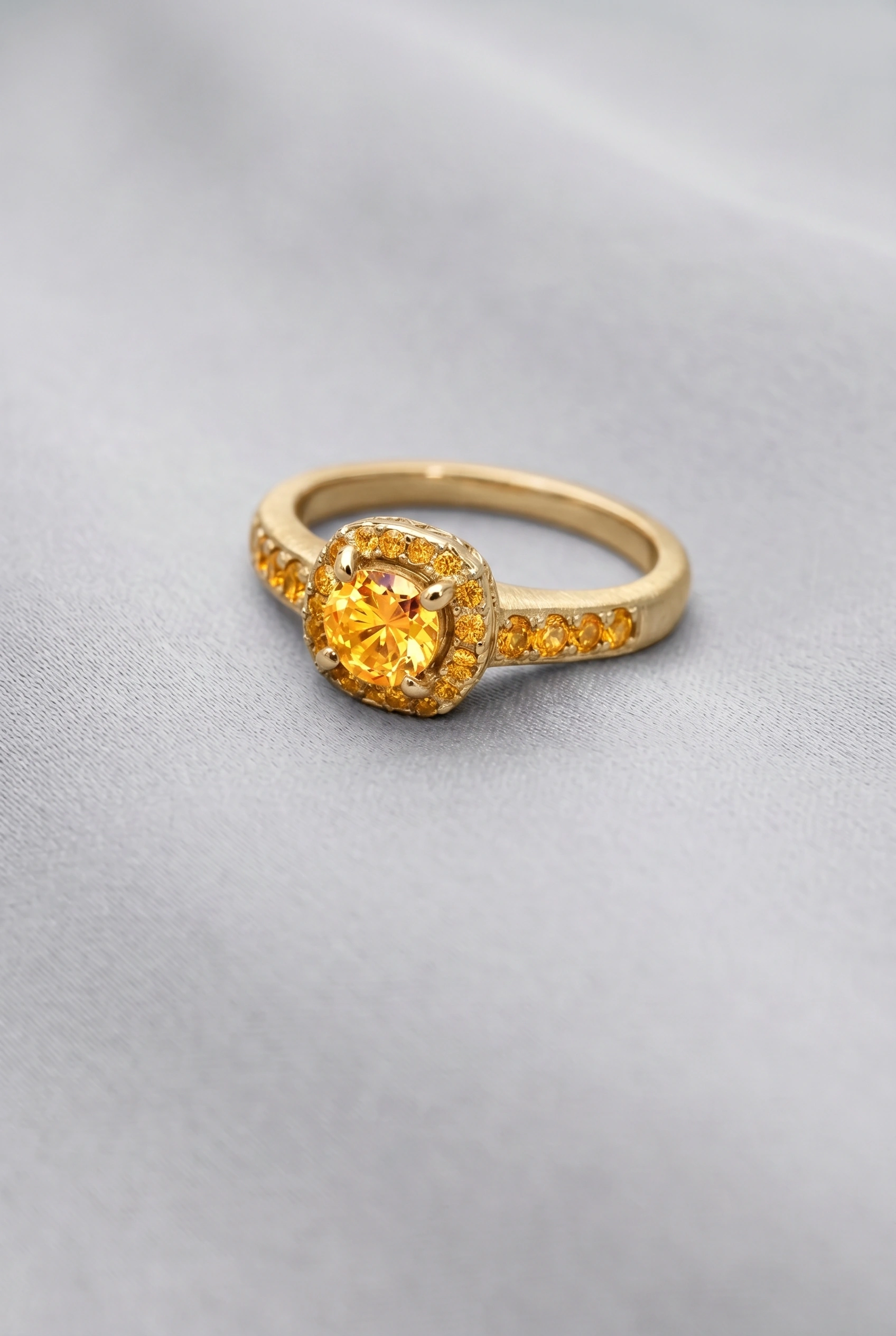
ring finish testing / gemstone colorway planning
Walkthroughs
Short demos for the two workflows most teams start with: bad photo cleanup and catalog variant creation.
A quick walkthrough for cleaning backgrounds, improving clarity, reducing noise, and exporting polished product images.
Changing jewelry materials in catalog images
YouTube video will be added soon.
Visit Poliro on YouTubeSee how material and gemstone directions help teams create catalog-ready variants from one source image.
FAQ
Practical answers for judging whether your source images are a good fit before you process a catalog.
Poliro provides a toolkit for working with a wide range of jewelry photos ranging from extremely poor quality images - which can be only restored with generative technology - to already exceptional images where only background removal or material swapping is required.
Related: Help & tutorials · Product photo guide
It can completely restore a severely degraded image or fix common catalog issues such as background cleanup, dust and small blemishes, noisy detail, soft edges, and dull lighting. The final result depends on the source image and selected workflow, so Poliro does not guarantee a perfect reconstruction, exact color match, or identical result every time.
Related: Before and after examples · Terms of Service
Yes. The material variant workflow can generate outputs for selected metal and gemstone combinations from one source image. Each selected combination can create a separate generated output image, and AI-generated variants should be reviewed before you publish them as final product imagery.
Related: Material variants guide · Billing Policy
Poliro is designed for repeatable catalog workflows, especially when source images share similar angles, lighting, crops, and backgrounds. AI outputs can still vary between images, so large batches should be checked for outliers, and some pieces may need another pass or manual adjustment.
Related: Common workflows · Terms of Service
Current plan copy lists PNG and JPEG exports on Starter, and PNG, JPEG, WebP, TIFF, and PDF exports on Pro. Starter outputs are limited to 1440 px on the longer edge, while Pro supports higher-resolution exports up to 4096 x 4096 px. Check the pricing and account pages for the current plan limits before choosing a workflow.
Related: Pricing and plan limits · Account FAQ
Upload a product photo and run the same workflows you just saw — cleanup, variants, exports.